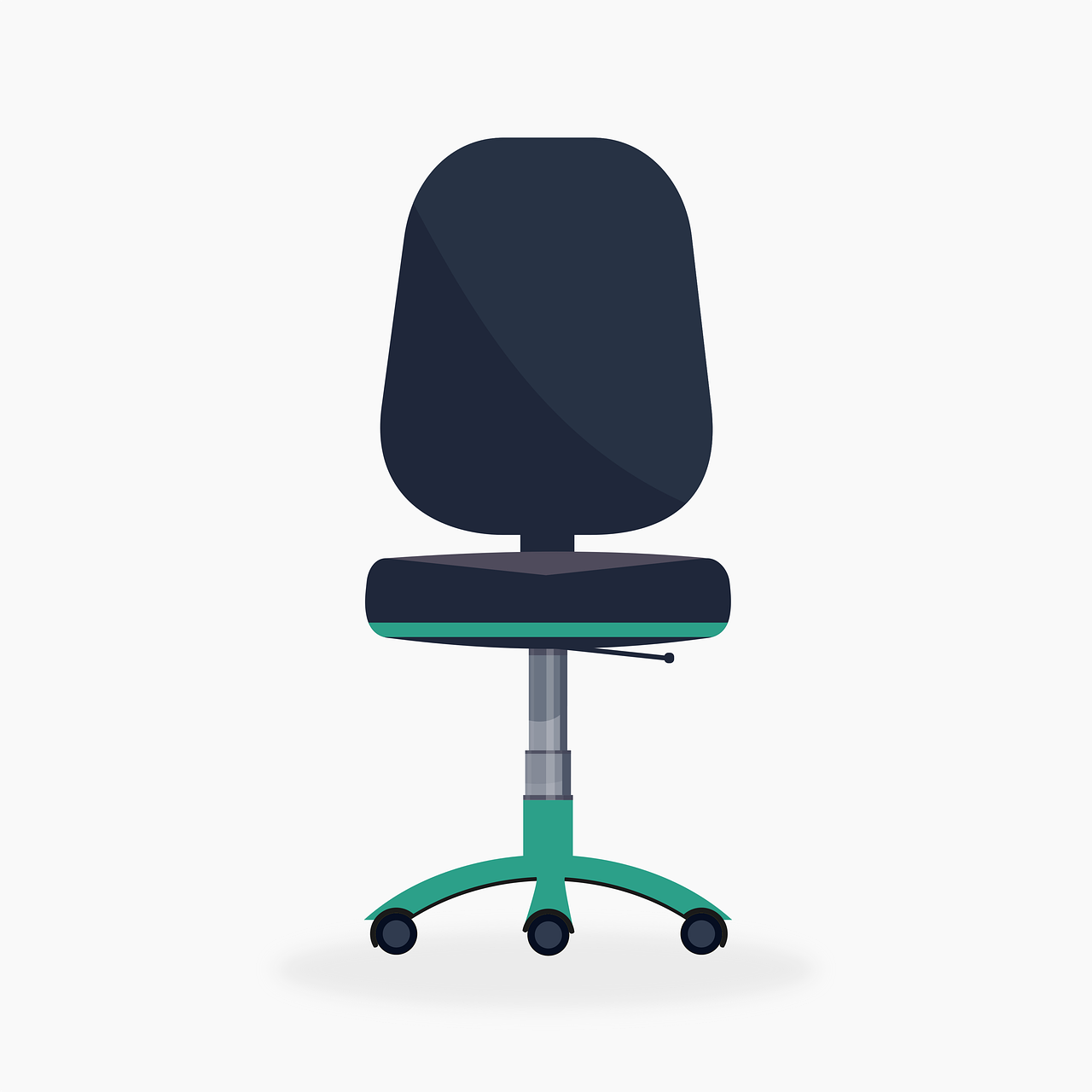

Ergonomic Tips: Setting Up Your Office Chair for Long Hours
Setting up your office chair correctly is essential for maintaining proper posture during long hours of work. An ergonomic chair helps reduce discomfort and enhances productivity. Start by adjusting the height of your chair so your feet are flat on the floor. This helps to keep your knees at a 90-degree angle. If your feet do not reach the ground, consider using a footrest. In addition to height adjustment, ensure that your backrest supports your lower back properly. An adjustable lumbar support encourages spinal alignment and reduces stress on the spine. Remember to position your chair close to your desk to prevent awkward reaching. Your elbows should remain close to your body and form about a 90-degree angle when typing. Armrests can alleviate shoulder strain, but their height should be adjusted to allow for free arm movement. Enable a slight recline of about 10-15 degrees for optimal comfort, which enhances circulation and reduces fatigue. Finally, take regular breaks to stand and stretch, relieving pressure on your spine and joints. Making these adjustments can significantly improve your comfort and productivity at work.
Regular chair adjustments are vital for maintaining comfort throughout your workday. If your office chair has multiple settings, familiarize yourself with them to find what works best for you. Ideally, you should adjust your chair every few hours to suit your changing posture and activities. The seat depth matters too; ensure that your back rests against the backrest, while leaving a small gap of two to three fingers between the back of your knees and the edge of the seat. This prevents pressure on your thighs, promoting better blood flow. If your chair allows for tilt adjustment, find a setting that allows your hips to be slightly higher than your knees. This position encourages a more natural spinal curve, reducing the risk of back pain. Additionally, pay attention to how your feet are positioned. Ideally, they should rest flat on the ground or on a footrest. Always use a chair that complements your desk height. A mismatched height can lead to discomfort and strain. By implementing these chair adjustments, you can create a comfortable and supportive workspace that improves long-term health and productivity.
Supporting Your Spine Effectively
To ensure your office chair supports your spine effectively, focus on proper lumbar support. Most ergonomic chairs come equipped with adjustable lumbar support, which helps maintain the natural curve of your lower back. When seated, your lower back should fit comfortably against the lumbar support. Adjust the lumbar support’s height to align it with the natural curve of your back. If your chair lacks this feature, consider using a small cushion or rolled-up towel for additional support. This aids in reducing strain on the lumbar spine during extended periods of sitting. Additionally, the backrest angle is crucial for supporting your spine. A backrest that inclines slightly allows for optimal support and promotes a relaxed sitting posture. Remember to test the backrest’s angle until you find a comfortable position that encourages good posture. A significant number of people experience back pain due to poor seating posture. To mitigate this risk, change your position periodically throughout the day. Try each adjustment until you discover what works best for your spine. Better spine support translates to improved overall wellness while working for prolonged durations.
Don’t forget about the importance of arm and head position while sitting in your office chair. Maintaining the correct position of your arms protects against repetitive strain injuries in the shoulders and wrists. When adjusting your chair, focus on your elbow height. At a proper height, your elbows must be positioned slightly lower than your shoulders, allowing your forearms to be parallel to the floor or angled slightly downward. Armrests, if available, should support your arms gently while typing, reducing tension on your shoulders and neck. If your chair has adjustable armrests, customize the height to ensure that your arms rest comfortably. Your wrists should also be in a neutral position while typing. Elevated wrists can lead to strain, so stay vigilant about their positioning. Additionally, the monitor height plays a significant role in your head position. Ensure that your screen is eye level, so you don’t strain your neck looking down or raising your head. The ideal viewing distance is about an arm’s length away from your face. Proper alignment of these factors promotes overall comfort and enhances productivity.
Aligning Your Workspace
Besides chair adjustments, it is important to align your workspace for optimal ergonomics. Start with the position of your computer monitor. Set it at least an arm’s length away, with the top of the screen at or just below eye level. This prevents you from tilting your head excessively, which can lead to neck strain. If using multiple monitors, keep your primary screen directly in front of you to minimize head turning. Additionally, arrange your keyboard and mouse close enough that you can keep your elbows at your sides while working. The keyboard should be positioned directly in front of your seated position to mitigate extension strain. If necessary, consider using a keyboard tray to achieve the correct height. Furthermore, eliminate clutter from your desk to promote better arm movement and reduce distractions. Store essential items within easy reach to avoid unnecessary stretches. Maintain a clean workspace to avoid distractions that may lead to poor posture. Remember that surrounding elements can influence your comfort, so also maintain appropriate lighting to reduce glare on screens. Adjusting your workspace enhances your overall productivity and comfort.
When setting up an ergonomic office chair, consider the benefits of cushioning and materials used in production. Chair cushions can significantly influence comfort levels, especially during prolonged sitting. Firm cushions are often recommended, as they provide the support needed to maintain posture without excessive sinking. Conversely, overly soft cushions might feel comfortable initially but can lead to poor spinal alignment over time. Look for high-density foam or gel cushions that maintain their shape. Furthermore, the chair’s material also affects comfort levels. Breathable fabrics can help regulate temperature and moisture, while leather or vinyl may offer a different level of comfort. Choose a material that suits your personal preference and work needs. Additionally, consider chairs with adjustable seat feature capabilities. Being able to modify the seat’s height is crucial for adapting your chair to your desk and individual body type. These materials and features collectively contribute to a more ergonomic experience, allowing you to sit for extended periods without discomfort. Ultimately, investing time in selecting the right chair can vastly improve your overall workplace experience.
Evaluating Your Posture Regularly
Evaluating your posture regularly while sitting in your office chair is essential for maintaining long-term health. Over time, it’s easy to develop bad habits that can lead to discomfort and pain. Periodically check in with your body and assess how you feel while working. Sit back comfortably in your chair and ensure that your shoulder blades are relaxed. Your head should be aligned with your spine, and your chin should not jut forward. If you notice that you are slouching, adjust your chair appropriately or remind yourself to sit up straight. Consider using reminders, such as a short alarm, to prompt you to reassess your posture throughout the day. Standing up and stretching every 30 minutes or so can also help you reset and realign your posture. Furthermore, utilizing technology such as ergonomic apps or wearables can support a more mindful approach to your seating position. These tools can alert you when you’ve maintained a poor posture for too long. By committing to regular evaluations, you’ll effectively promote a healthier work environment and minimize potential risks associated with poor posture while sitting.
Lastly, ensure to take frequent micro-breaks as a fundamental practice for maintaining good posture while working long hours. Research shows that taking brief breaks significantly enhances overall productivity and reduces muscle fatigue. Aim to stand or stretch for at least a minute or two every 30 to 60 minutes. Use this time to walk around your office or perform gentle stretching exercises that target your back, neck, and shoulders. This movement helps relieve tension that may build up during prolonged sitting. Try setting reminders on your phone or computer to encourage movement throughout the day. Furthermore, consider adjusting your schedule to incorporate these breaks more easily. For instance, standing meetings or desk work while utilizing a standing desk can encourage movement and prevent prolonged periods of inactivity. Mixing up positions keeps your body engaged and improves circulation. In conclusion, creating an ergonomic office chair setup is imperative for enhancing your overall productivity and well-being. Commitment to proper adjustments, surroundings, and break practices contribute significantly to forging a healthier work atmosphere.